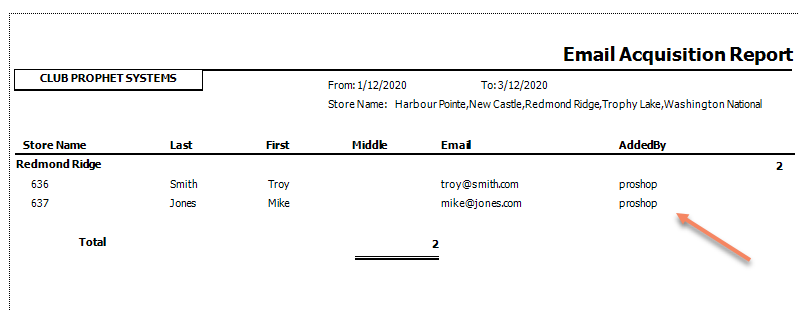
Email Acquisition report includes the user’s login name who added customer’s emails with PIN
Email Acquisition report’s AddedBy column includes emails added by PIN on the tee sheet in the 3.100 release.
Previously, the AddedBY column only displayed the user’s name logged into the software, not necessarily the user who may have added the email. In Starter Hut, when the PIN feature is used to track activity, the customer added on the tee sheet is still logged under whoever is logged into the software.
You must have your employees set up to use their PIN when adding new guests, golfers, and email addresses. To learn how to set that up, jump here>>
To set up to track the customer emails
-
Go to Starter Hut.
-
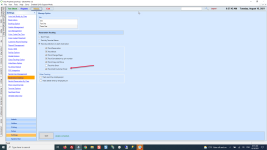
Select Admin | Settings | Reservation Tracking. The Manage Options screen displays.
-
Select the Track Add Customer Email checkbox.
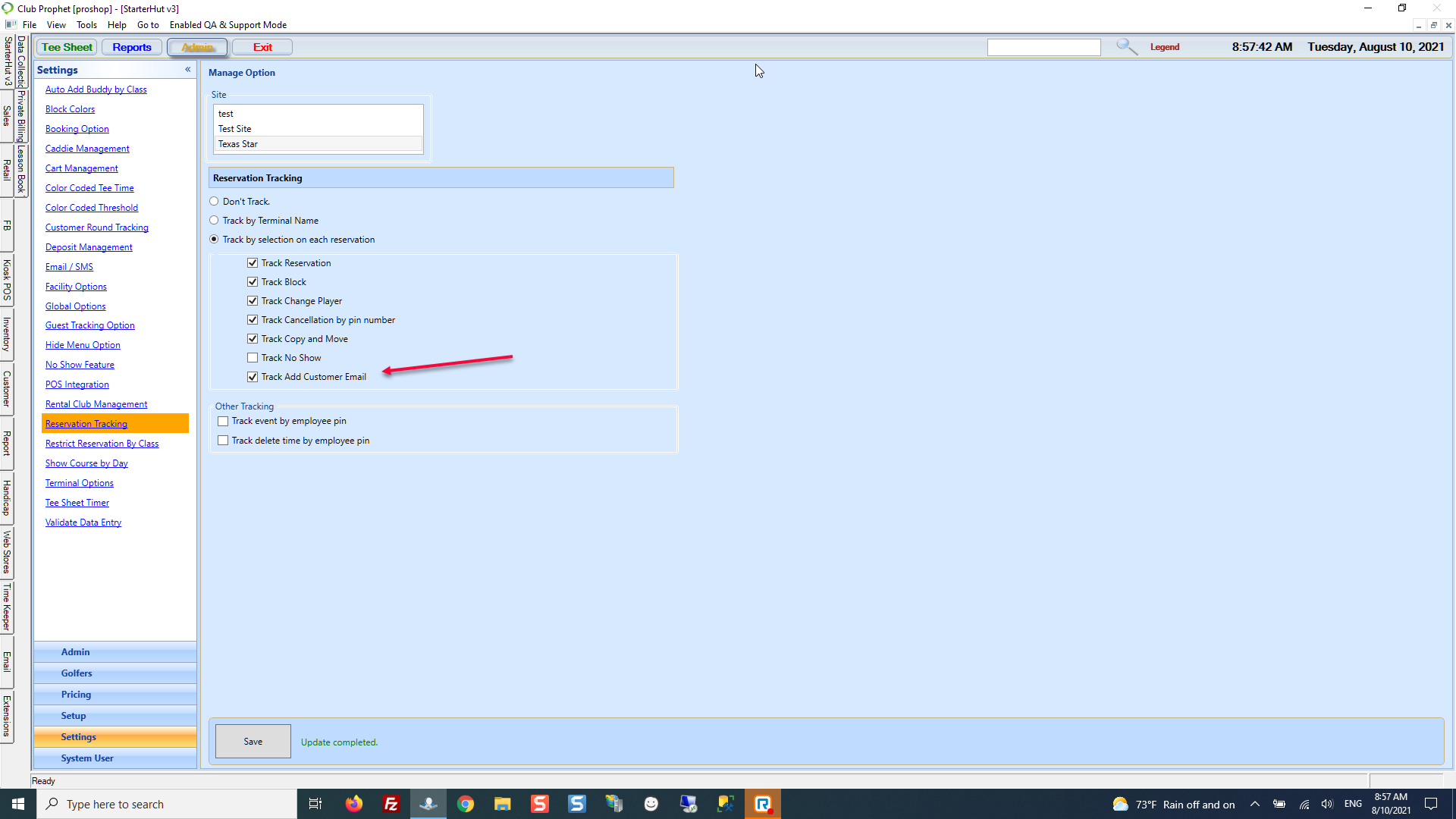
Note: The Track Reservation checkbox records which staff members in the pro shop added bookings. The Track Add Customer Email checkbox indicates who entered the email in the customer's account. These features can be used together or separately.
-
Select Save. The words Update Completed displays next to the Save button.
Now, after your employee uses their employee PIN to add a new customer and their email address, their username will display in the Email Acquisition report in the AddedBy column.
To run the Email Acquisition report
-
Go to Reports.
Note: Are you running this report for the first time? Yes>>
-
Select the time-frame tab that you assigned the report: [On Demand, Daily, Weekly, Monthly, Yearly] The reports under that tab display.
Note: Selecting one of these time frames, in turn, sets the date range for the report automatically.
-
Select the Email Acquisition report from the list on the left; you may have to scroll down.
-
On the right-hand side of the screen, make sure your date range is correct and that the Show Email and Included Players/Guests checkboxes are selected.
-
Select Print or Display. The report runs, and you can see the employee’s username in the report under the AddedBy column. For more details on this step, jump here>
Report Example